How to Purchase and Activate Your Ford IDS License Through Triad
If you’re running Ford diagnostics in your shop, having a valid IDS (Integrated Diagnostic Software) license is non-negotiable. As an authorized Ford IDS seller, Triad Diagnostic Solutions makes the process straightforward—from purchase to activation.
Here’s exactly how to get set up.
Step 1: Purchase Your Ford IDS Subscription from Triad
Start by purchasing your Ford IDS subscription directly through Triad.
As an authorized seller, we handle the subscription purchase on your behalf and act as your Sponsor within the Ford Motorcraft system. This sponsorship is required in order for you (or your technicians) to access IDS, FDRS, FJDS, or Ford DiagNow. Click here to purchase IDS Software!
Once your subscription is processed, the next step is connecting your Motorcraft account to Triad as your Sponsor.
Step 2: Ensure Each User Has a MotorcraftService.com Account
Every individual who will use the subscription must have their own MotorcraftService.com username and password to log into IDS, FDRS, FJDS, or Ford DiagNow.
This is critical:
- Subscriptions are purchased by the Sponsor (Triad).
- Each technician logs in with their individual Motorcraft credentials.
- Logins are not shared.
If a technician does not already have a Motorcraft account, they must create one.
Step 3: Create a Motorcraft Account (If Needed)
If your technician does not have an account:
- Navigate to MotorcraftService.com
- Click “Register Today”
- Complete the onboarding steps
- Verify the email address
- Update account information
During account setup, the user must select “Diagnostic Software User” as their user type .
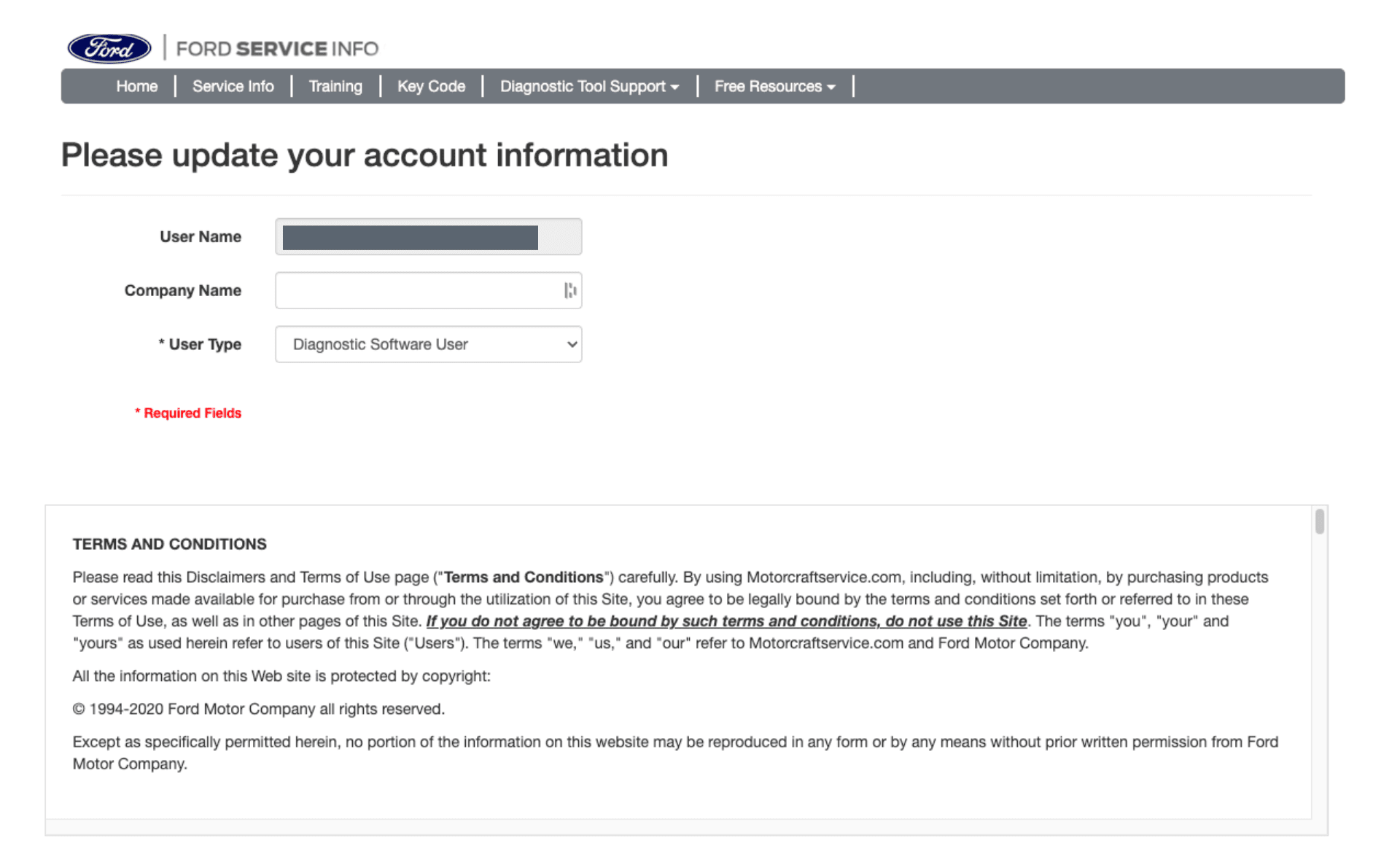
Selecting the correct user type ensures proper access to IDS and related Ford diagnostic platforms.
Step 4: Add or Update Sponsor Information
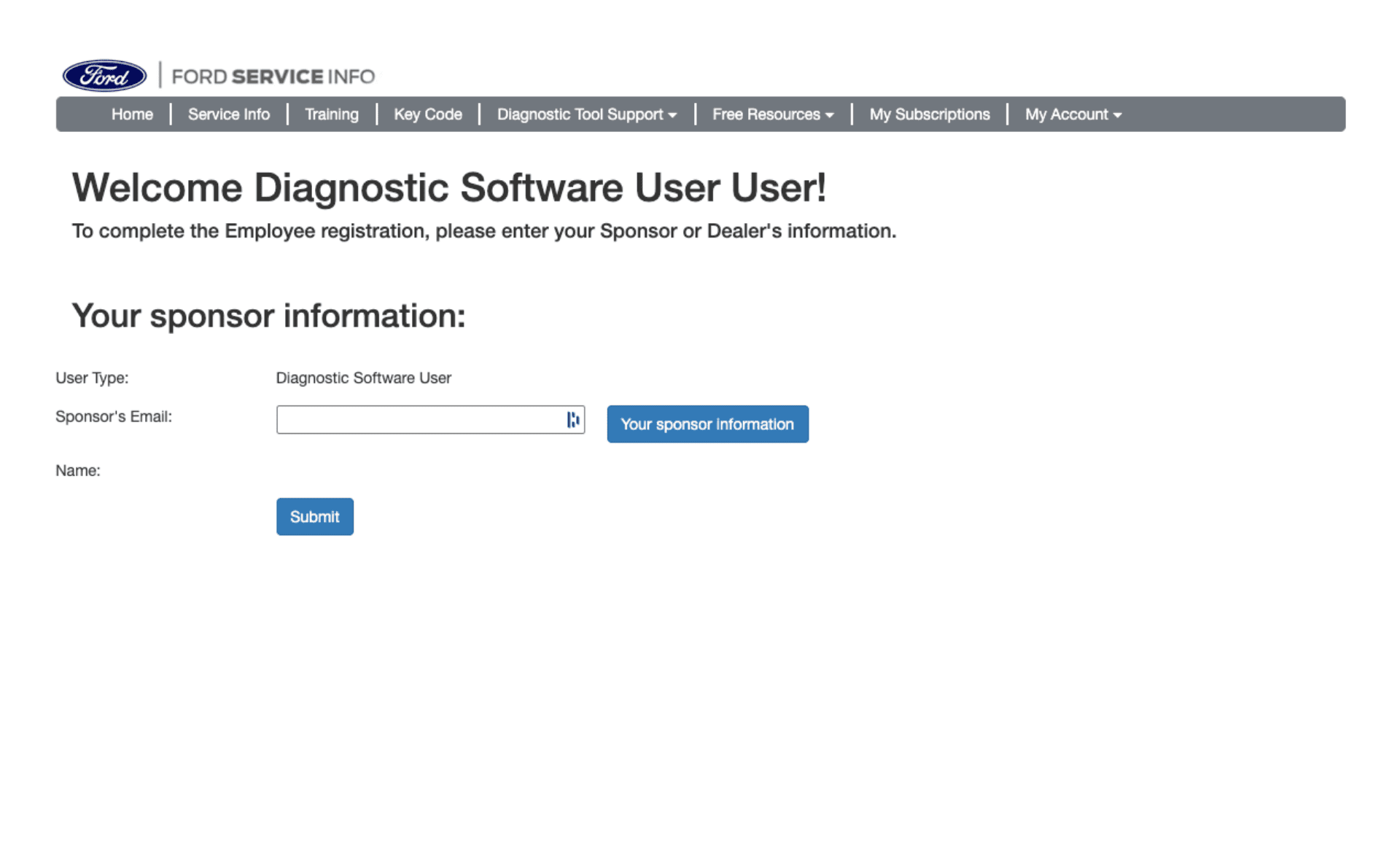
After selecting “Diagnostic Software User,” the system will prompt for Sponsor Information .
If the user already had a Motorcraft account, they must:
- Log in
- Navigate to the My Account dropdown
- Select “Update Sponsor”
This brings them to the same Sponsor Information page .
Step 5: Enter Triad as Your Sponsor
When prompted for Sponsor Email, enter:
This is Triad’s official sponsor email address .
After entering the email:
- Click “Your Sponsor Information” to validate
- Click Submit
[Insert Screenshot: Sponsor Email Entry Screen with [email protected] entered]
Once submitted, your account is properly linked to Triad’s purchased subscription.
What Happens Next?
After your account is:
- Set to Diagnostic Software User
- Linked to Triad as Sponsor
- Connected to an active subscription
You’ll be able to log into IDS (or FDRS, FJDS, Ford DiagNow) using your Motorcraft credentials.
If you purchased multiple user seats, repeat the Motorcraft registration and Sponsor steps for each technician.
Common Mistakes to Avoid
- Not selecting Diagnostic Software User
- Using shared logins between technicians
- Forgetting to update Sponsor on existing Motorcraft accounts
- Entering the wrong Sponsor email
The most common issue we see is users skipping the Sponsor update step. If Triad is not listed as your Sponsor, your IDS access will not activate properly.
Why Purchase Ford IDS Through Triad?
When you buy through Triad:
- You’re working with an authorized Ford IDS seller
- We ensure correct subscription setup
- We assist with sponsor configuration
- We provide support if activation issues arise
If something doesn’t connect properly, you’re not left troubleshooting Ford’s system alone.
Need Help Activating Your IDS License?
If you’ve completed the steps above and are still having trouble:
- Confirm your user type is Diagnostic Software User
- Confirm Sponsor email is [email protected]
- Verify your subscription term is active
If everything looks correct and you’re still locked out, contact our team and we’ll walk through it with you.